Guided screenshots, not live forms. Fictional public-demo data. No production account, live AI, email delivery or money movement.
Guided work Step 9 of 33
Rejected: required work has not been confirmed
Your action
Read the red validation message. Check Required matter work completed only after the work is actually complete. This walkthrough uses a fictional completion.
Why this was rejected
Complete required step: Required matter work completed. Reload
The action did not succeed. Follow the correction above; the next screen shows the corrected input.
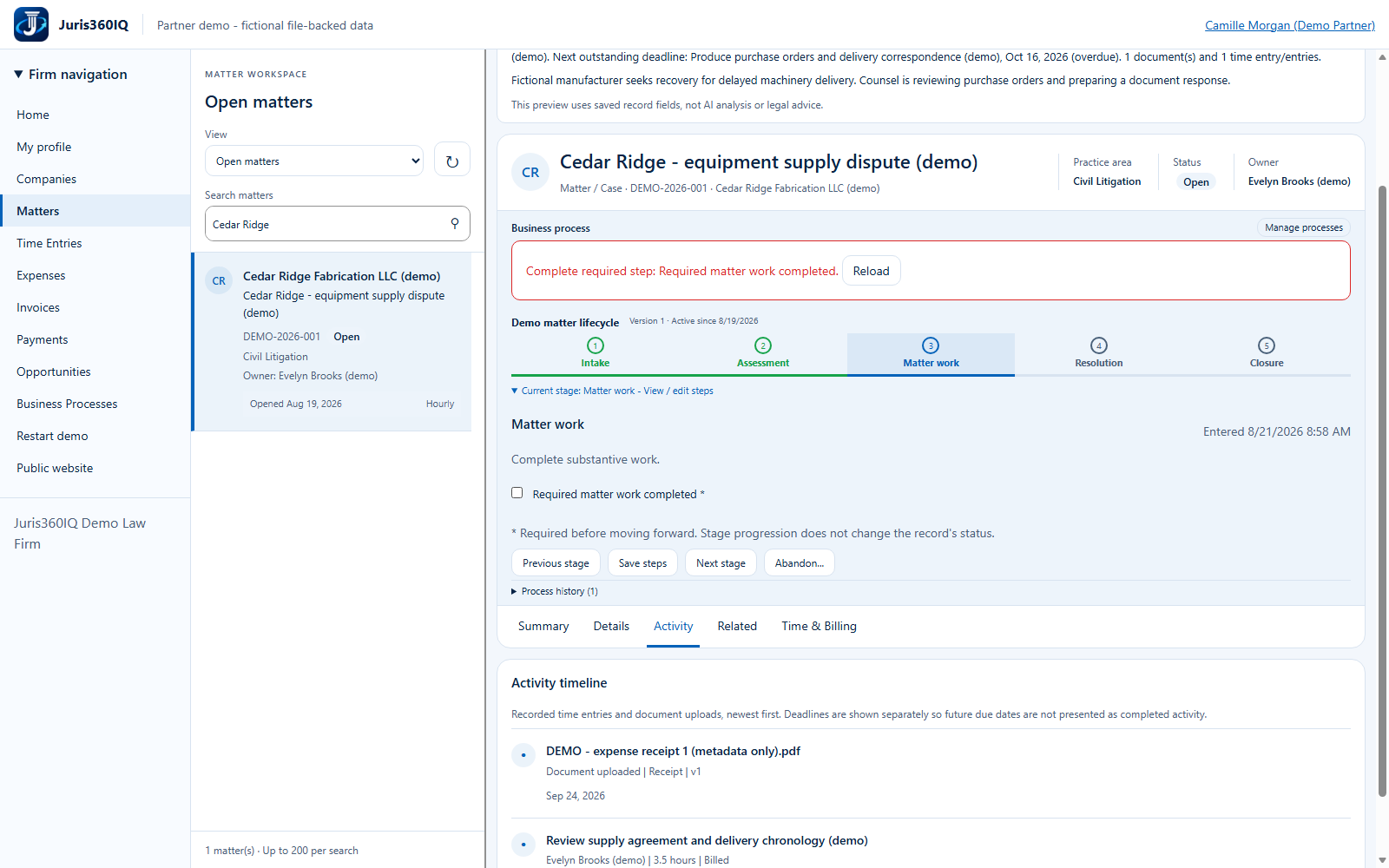
Highlighted controls
- Actual rejected action
- Confirm completed work
Value to the firm
Explicit rejection prevents an incomplete checklist from silently advancing and makes the correction clear.
Presenter notes: purpose, business value and limitations
The rejection shown was produced by the running demo, not inserted into the screenshot. The required checkbox was false. The remedy is to complete the actual work, then check and save its confirmation; checking a box is not a substitute for legal work. No stage changed when the invalid request was rejected.
Business value: Explicit rejection prevents an incomplete checklist from silently advancing and makes the correction clear.