Guided screenshots, not live forms. Fictional public-demo data. No production account, live AI, email delivery or money movement.
Time capture Step 13 of 33
Capture work while the details are fresh
Your action
Review the time ledger, then click New time entry. Saving and approving are separate steps.
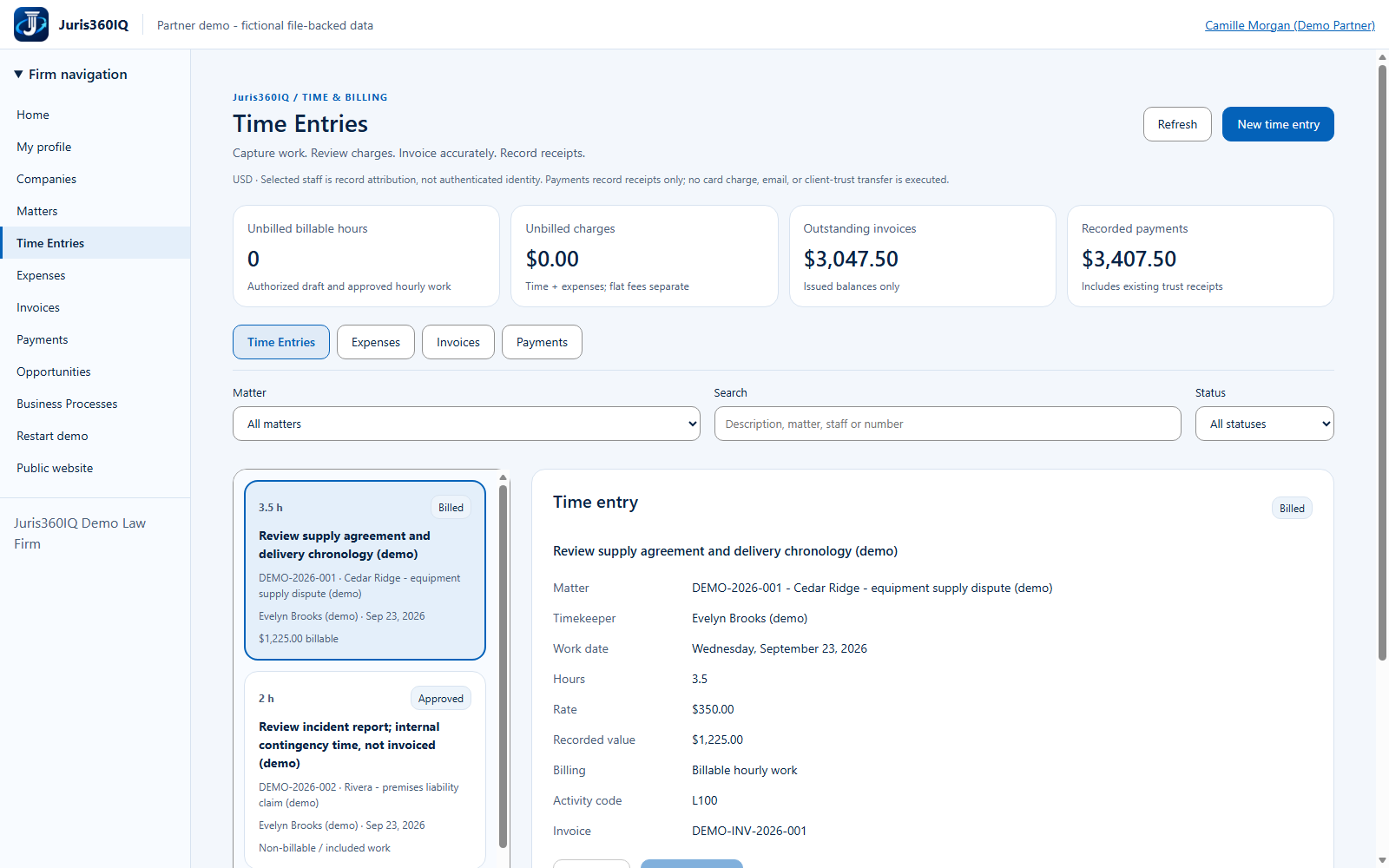
Highlighted controls
- Start a new time entry
Value to the firm
Prompt time capture reduces forgotten work and produces a clearer billing narrative.
Presenter notes: purpose, business value and limitations
The shared billing workspace lists recorded work and statuses. We will log one new fictional 1.25-hour entry. The public Partner can create and approve this work; real deployments should assign privileges according to the firm security policy. No timesheet is submitted to an external system.
Business value: Prompt time capture reduces forgotten work and produces a clearer billing narrative.